"The False Alarm" or How I mistook a ZSH theme for an Infostealer
Introduction
I spend a lot of time configuring my personal systems, customising them to my liking. I also spend a lot of time hardening said systems. I use a MacBook as my daily driver in my personal life. Whilst Apple's Privacy and OS Security model is fairly decent out of the box, it never hurts to take some extra precautions.
Objective See offers various free and open source security tools, including but not limited to a firewall, a custom task explorer and network monitoring tools. One tool in particular, BlockBlock is pertinent to this post. BlockBlock monitors locations commonly leveraged for persistence and alerts whenever a persistent component is added to the host.
Recently, BlockBlock flagged something that initially gave me a fright but after digging into it a little, I discovered that it was a legitimate feature from a custom ZSH theme Powerlevel10k.
In this blog post we explore exactly how I analysed the notification and determined that it was a false positive.
The Alert
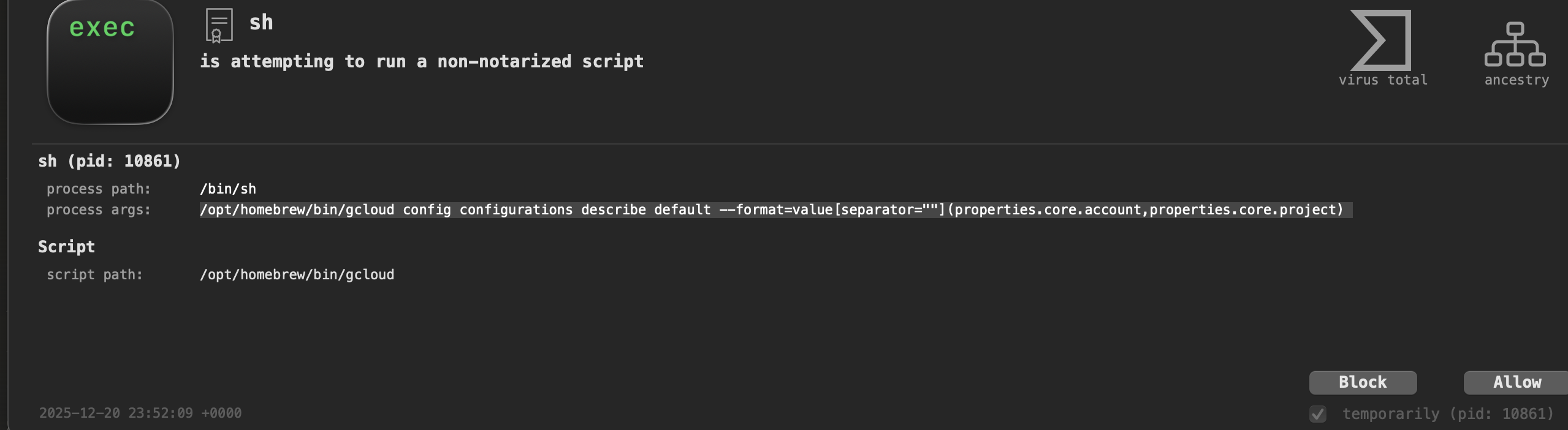
Objective-See was blocking what it identified as a non-notarised script attempting to run. The process details showed:
sh (pid: 10861)
/bin/sh
/opt/homebrew/bin/gcloud config configurations describe default --format=value[separator=""](properties.core.account,properties.core.project)
My immediate reaction was one of concern. The command was extracting GCP credentials and project information, using odd formatting with empty separators, and running at what appeared to be shell startup. The pattern looked suspicious and for a moment I wondered whether I'd somehow got my host infected by an infostealer or downloaded a trojanised version of the gcloud command line interface and I had only now stumbled across it.
Initial Investigation
I ran the command with proper quoting to see what would happen:
/opt/homebrew/bin/gcloud config configurations describe default --format='value[separator=""](properties.core.account,properties.core.project)'
When I checked the gcloud CLI, it returned nothing:
gcloud auth list
No credentialed accounts.
This was reassuring. If something was trying to exfiltrate credentials, at least there were none to steal. But it still left the question of why this command was running at all.
Finding the Source
I combed through my shell configuration files. The answer was in my .zshrc and specifically in how Powerlevel10k was configured.
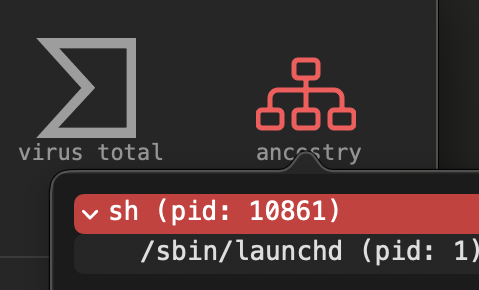
The shell ancestry showed that launchd was spawning the sh process, which then executed gcloud. This wasn't some background daemon or a stray cron job. This was my prompt theme.
What Was Actually Happening
Powerlevel10k includes a built-in segment that displays the users current GCP project in the shell prompt. I'd never disabled it during setup, so it remained active. The segment is configured to refresh every 60 seconds (controlled by POWERLEVEL9K_GCLOUD_REFRESH_PROJECT_NAME_SECONDS=60 in the .p10k.zsh file), pulling the project information by running that exact gcloud command.
The reason Objective-See flagged it was straightforward. The pattern matched what endpoint detection tools look for:
- A subprocess launching another process (sh calling gcloud)
- Querying system configuration, specifically authentication settings
- Using unusual formatting to concatenate values without delimiters
- Running automatically at shell initialisation and at regular intervals
To an automated detection rule, this pattern resembled credential exfiltration.
The timestamp shows that BlockBlock was catching this at regular intervals throughout my session. Each time the prompt refreshed, it tried to run the gcloud command, and each time the detection tool flagged it. This became more annoying than anything, and I needed to find a fix, but first I am going to discuss why identifying the root cause mattered and why it could feasibly have been a code red scenario.
What is the point?
I'd configured Powerlevel10k months ago and understood the core functionality, but did not dive into every variable or page of the documentation. Afterall, its purpose on my host was to improve the user experience of the ZSH shell, what harm could it do?
I trusted that the tool was benign without actually verifying it. That worked out fine this time because Powerlevel10k is legitimate, I had retrieved it from source etc. but that is still no excuse. Remember my brief mention of the macOS privacy model? Well installation of tools via Homebrew can defeat that in some cases.
A brief primer on macOS Security Architecture.
I won't dive deep into the topic of the Apple Sandbox and signing and notarisation, you can read more about Notarisation from the documenation, but to oversimplify it: in order to execute an application on macOS it must be Signed and Notarised. Signing involves purchasing an Apple Developer certificate to cryptographically tie an application to a given Developer, whereas Notarisation is a second layer of validation, in which a Developer submits their application to Apple for scanning, if Apple's systems approve it and do not identify any malicious behaviour then it will staple a ticket to the binary, thus 'Notarising' it.
Why would a developer want to Notarise their code? Well it has to do with Apple's security architecture. There is a component called Gatekeeper which is designed to help ensure that only trusted software runs on a user’s Mac. When a user downloads and opens an app, a plug-in or an installer package from outside Apple's App Store, Gatekeeper verifies that the code is from an identified developer and is Notarised by Apple. Gatekeeper also requests user approval before opening downloaded software for the first time to make sure the user hasn’t been tricked into running executable code they believed to simply be a data file.
When you download a PE file (.exe, .msi) etc on Windows, you may often get warnings that the code is from an untrusted developer. However, dependent on the configuration of the system, you can often click through these and execute the program. Not on macOS though, if a binary is not Notarised, it will warn the user that the code was downloaded from an untrusted source and deny the ability to execute the code, even if it is Signed. There is a workaround for this in macOS's provacy settings, but it would require a skilled social engineer to convince a victim to do this for them - and even then the user may not have the privileges to do so.
However, there are exceptions to this Notarisation requirement... Homebrew and shell scripts are exempt because they're not standalone executables. Homebrew is a package manager that installs other software (which get notarised individually), and shell scripts require an interpreter (sh, zsh, bash) to execute, meaning the interpreter itself is what runs and gets checked, not the script.
I am sure the reader has at least heard the term supply chain attack and can already see where this is going. Essentially, Homebrew can present an attractive target for infecting macOS endpoints. Taps function as third party repositories. These Taps can be for applications and third party tools. Taps, by default at least, are effectively Git repositories and can be hosted anywhere.
Combine this with the fact that Homebrew is signed and can handle installation of the Tap automatically and you have a decent Malware delivery system. A more stealthy adversary may wish to take this a step further and compromise a component used by a popular Tap and wait or trojanise a legitimate Tap and typosquat the real version and wait for unwitting users to download their malicious version.
For more information on such attack vectors, SpectreOps did an excellent talk on it at SoCon 2025.
Whilst Homebrew is not installed by default, it is reasonable well used, especially on personal mac's. And it was installed on mine. I feared I had installed a malicious version of gcloud or a similar piece of software which bundled a malicious version of it. But luckily, this was not the case.
The Fix
I had two options. The first was to suppress the gcloud segment entirely by removing it from my right prompt elements in ~/.p10k.zsh. The second was to leave it disabled but keep the configuration, understanding that it would only run if explicitly triggered. I went with the first option.
# In ~/.p10k.zsh, remove 'gcloud' from POWERLEVEL9K_RIGHT_PROMPT_ELEMENTS
# This prevents the segment from running at all
Alternatively, if I were to begin using GCP regularly, I could set the refresh interval to a larger length of time, for example:
typeset -g POWERLEVEL9K_GCLOUD_REFRESH_PROJECT_NAME_SECONDS=999999
The legitimate use case for this segment exists if you're working with multiple GCP projects. The prompt can display which one you're currently configured to use, similar to how it might display your current Kubernetes context or AWS profile. But for my purposes, it added nothing useful and was only generating noise everytime I opened my Terminal.
Conclusion
The experience was a reminder to always understand the tools I use and that security alerts are not always correct. Block-Block did its job correctly by flagging a process pattern that could indicate persistence and credential exfiltration. The fact that it was Powerlevel10k doing routine prompt maintenance rather than a trojan was something only I could determine by actually understanding the behaviour of the application running on my system.
So next time, before you install a tool, spend a little time understanding what it actually does. Read the configuration files. Run the commands it executes. Understand why it's doing what it does. I'd recommend this regardless of whether you work in security, but it becomes essential if you do. Anyways, thanks for reading!